
User Guide
A short guide for your first days with Best Price Flights — web app and Android. Last updated: 16 November 2026.
Best Price Flights watches flight prices for you. Use the web app in the browser, or the Android app from Google Play. The screens look the same on both. We do not sell tickets — when you are ready to buy, you open the provider’s booking link.
iPhone native app is under development. Until then, use the web app (Safari works well with browser notifications). Need help? See Support or email rexsoft24@gmail.com.
What the app does
The service checks Kiwi, Google Flights, and Skyscanner on a schedule, then alerts you when a fare drops below the best price seen so far — while the deal is still bookable.
You do not need to open the app every day. Create a search once, leave tracking on, and book from an alert or from the search results page when you are ready.
Quick start (first time)
- Open the web app or install the Android app from Google Play.
- Continue with Google and sign in with the account you want to use.
- On the home screen, tap or click New flight search.
- Choose From / To airports, dates, passengers, and stops — or use Use AI chat instead and describe the trip in plain English.
- Tap Review search, check the summary, then Start tracking.
- Wait a few minutes for the first price check. Early alerts appear under Recent alerts (and by push / email if those are enabled).
- Open a search from Active searches anytime to compare providers and tap Book for … when you want to buy.
1. Sign in
Best Price Flights uses Google sign-in only. There is no separate email/password form. On first launch you are asked to continue with Google. After that, the same device usually signs you in automatically.
Your searches, alerts, and subscription are tied to that Google account. Use the same account on web and Android so your watches stay in sync.
2. Home screen
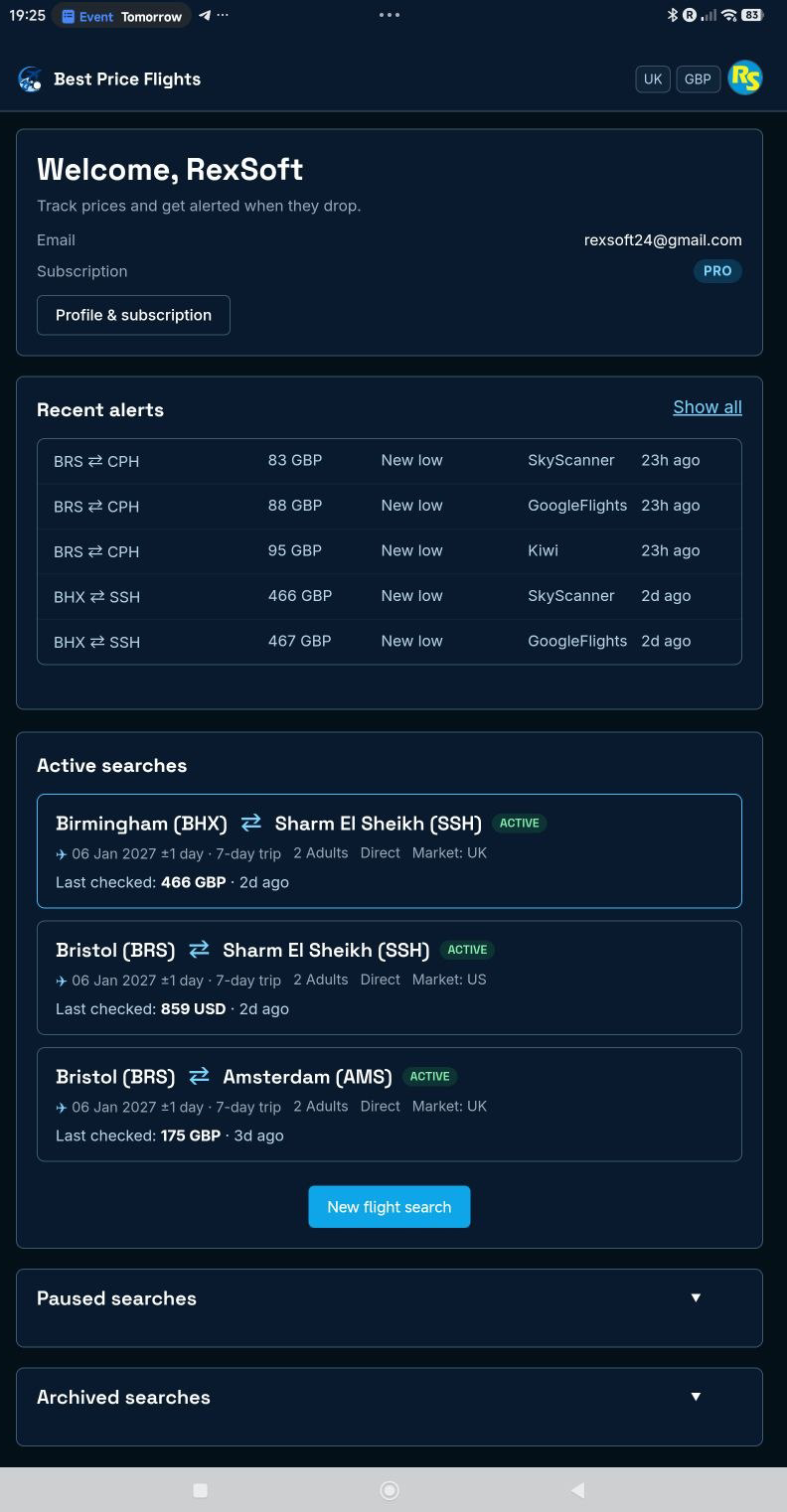
The home screen is your dashboard. From top to bottom:
- Market and currency (top right) — shopping region and display currency. Different markets can show different itineraries and prices. Tip: choose the market that matches the country you are flying from.
- Your name, email, plan badge (Free / Basic / Pro), and Profile and subscription.
- Recent alerts — the latest price drops. Tap Show all for the full list.
- Active searches — routes you are tracking. Open a card for results, or tap New flight search.
- Paused searches — watches you stopped temporarily (not checked until you resume).
- Archived searches — old watches archived after the travel dates passed.
If you are new, start with New flight search.
3. Create a flight search
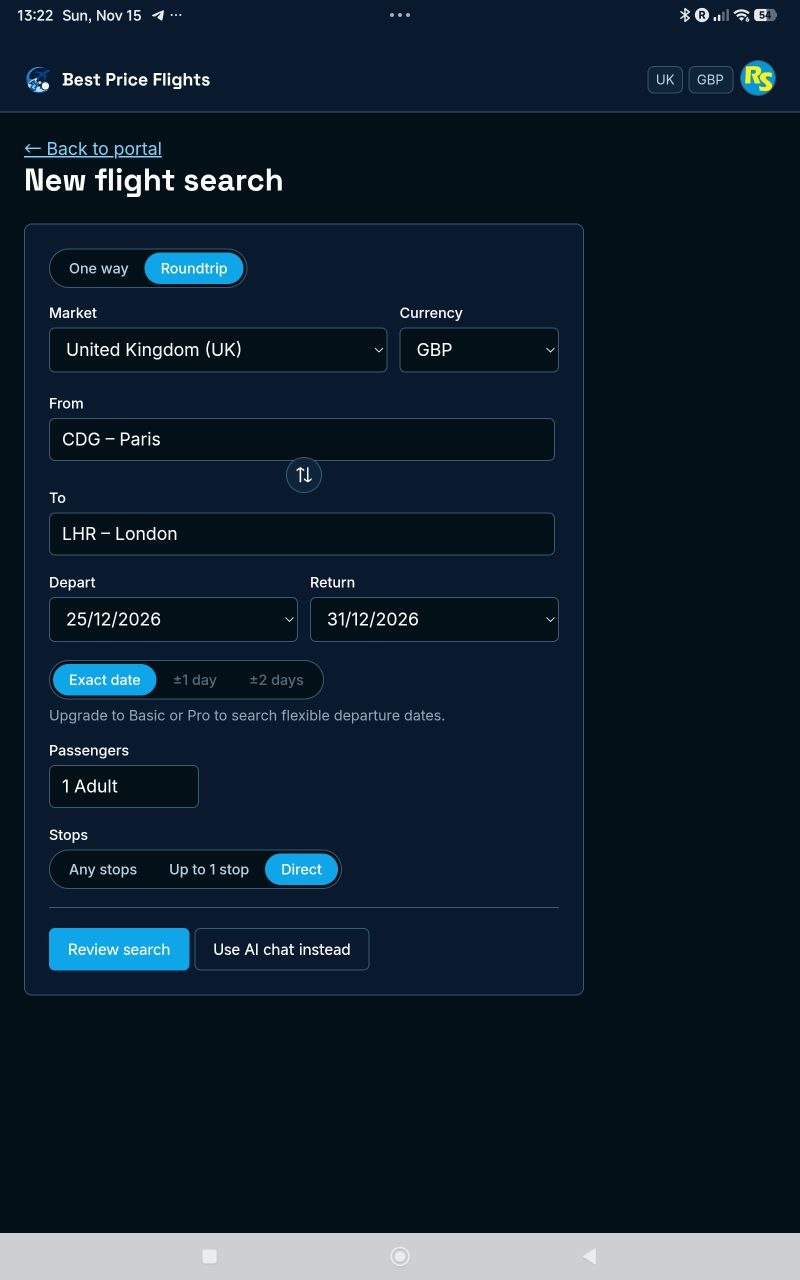
The New flight search form lets you set:
- Trip type — One way or Roundtrip.
- Market and currency — can differ from your saved defaults for this search only.
- From and To — type an airport code (IATA), city, or country and pick from the list.
- Dates — depart date; for roundtrip with Exact date, also a return date. With flexible dates on a roundtrip, you set trip length in days instead of a fixed return date.
- Flexibility — Exact date, ±1 day, or ±2 days. Flexible dates are available on paid plans (±1 on Basic and Pro; ±2 on Pro).
- Passengers — adults (12+), children (2–11), infants (under 2).
- Stops — Any stops, Up to 1 stop, or Direct.
Then:
- Tap Review search and check the summary.
- Tap Start tracking to save the watch and run the first price check.
What happens after Start tracking
The app immediately looks up the best current prices from all three providers. That usually takes a few minutes. When it finishes, you typically get an early alert per provider with the best itinerary found so far.
Alerts can appear:
- In the app under Recent alerts
- As a native Android notification (if enabled in Profile)
- By email (if enabled in Profile)
- As a browser / Web Push notification on the web (if enabled)
Later checks run on your plan schedule (for example once a day on Free, more often on Basic and Pro). You can open a search anytime to see the latest poll. New alerts are sent when a price beats the historical low for that search (overall or for a specific provider) — not after every routine check.
4. AI flight assistant (optional)
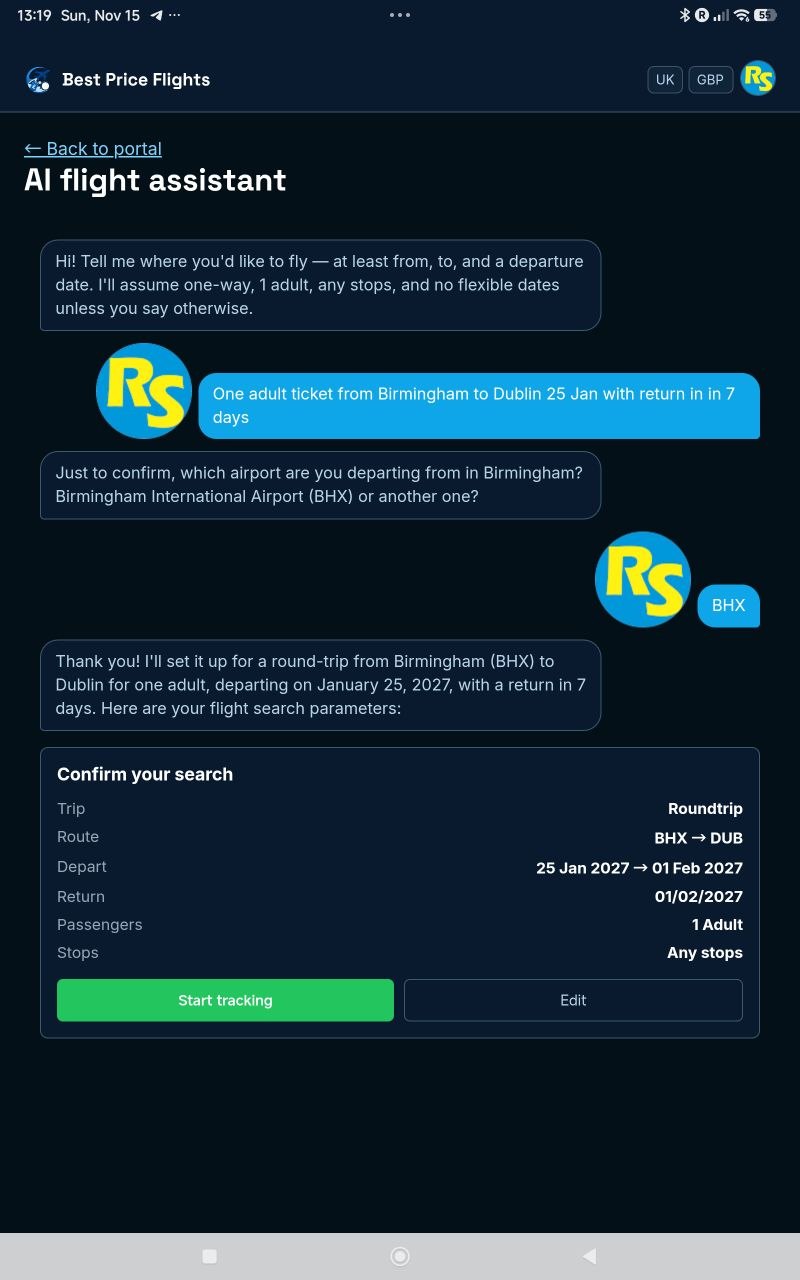
Prefer typing in plain English? On New flight search, tap Use AI chat instead.
Tell the assistant where you want to fly, when, and any extras (passengers, stops, flexible dates). If something is missing, it asks follow-up questions, then shows a Confirm your search card.
Tap Start tracking to begin watching — the same as after the form. The assistant helps you fill the search; it does not book tickets.
5. Search results and booking
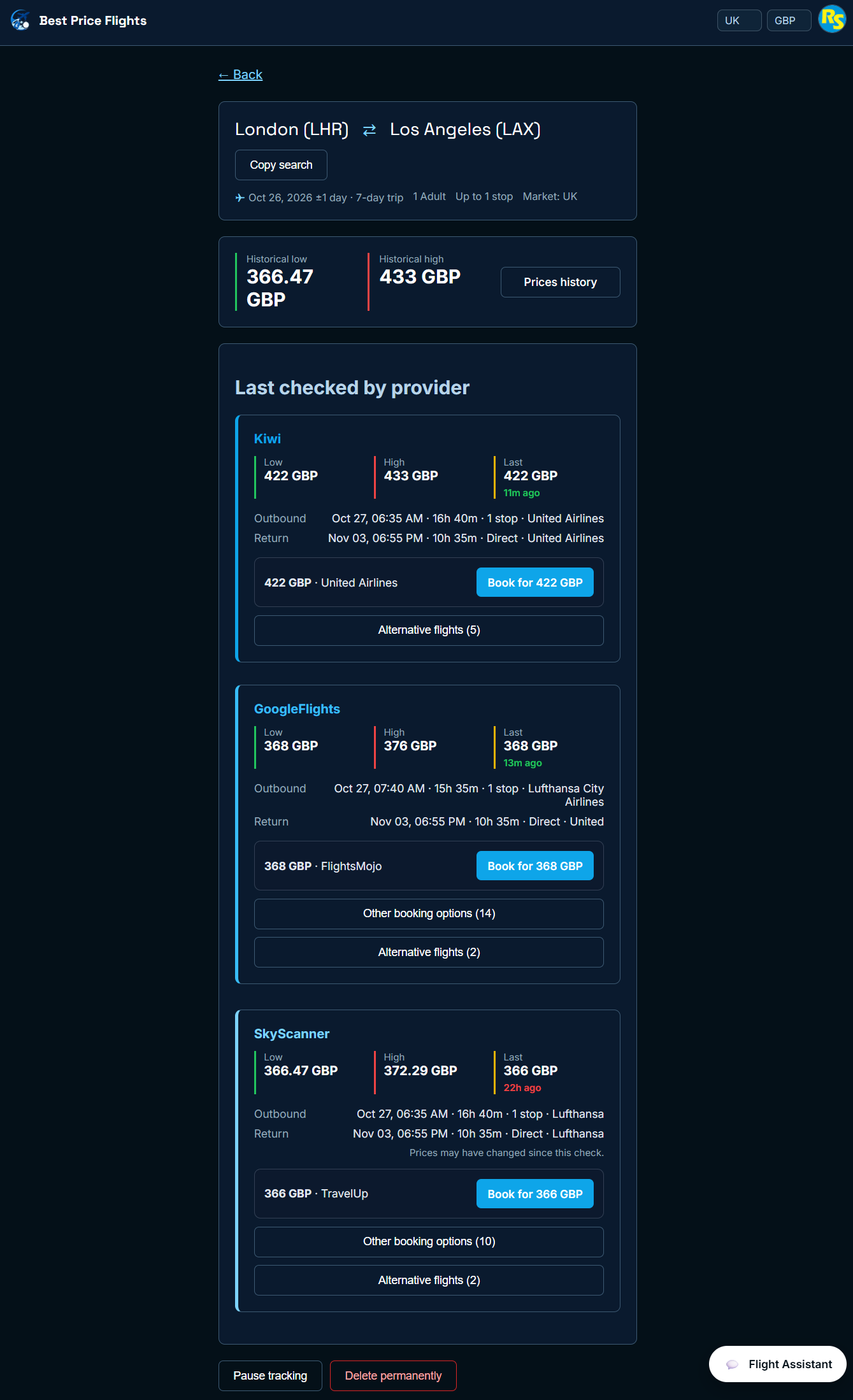
Open any search from the home screen. You will see:
- Historical low and historical high across all providers
- A card per provider (Kiwi, Google Flights, Skyscanner) with that provider’s low / high / last price and when it was checked
- Book for … — opens the seller’s site to buy that itinerary
- Other booking options — other agents for the same flight (when available)
- Alternative flights — other strong options near the best price (when available)
- Prices history — past best prices by provider, plus a price trend chart when enough checks exist
At the bottom of the results page you can Pause tracking (stop checks without deleting) or Delete permanently (remove the search and its history). Resume a paused search when you are under your plan’s active-search limit.
6. Profile and subscription
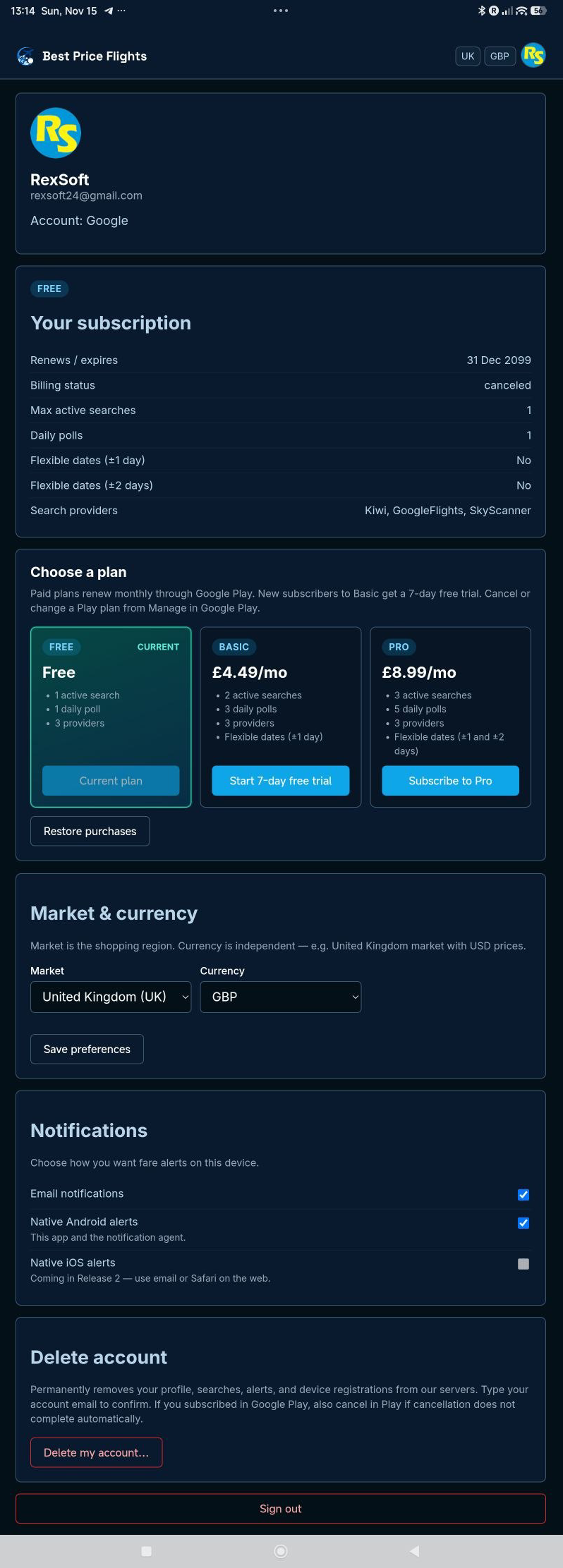
Open Profile and subscription (or Profile in the web portal) to manage your account.
- Account — name and Google email
- Current plan — allowances such as active searches, daily polls, and flexible dates
- Choose a plan — Free, Basic, or Pro. On the website, paid plans use Stripe. On Android, paid plans use Google Play (Basic usually includes a free trial for new subscribers). Use Restore purchases on Android after reinstalling if needed.
- Market and currency — Save preferences to use these defaults next time
- Notifications — turn email, native Android alerts, and (on web) browser push on or off
- Delete account — permanently removes your profile and app data. Cancel Stripe or Google Play billing separately if you have a paid plan.
- Sign out — leaves the account on this device without deleting data
Plans at a glance
Exact limits are always shown on your Profile page. In general:
- Free — good for trying the app: fewer active watches, one price check per day, exact dates only.
- Basic — more frequent checks, flexible dates (±1 day), and a free trial for new subscribers.
- Pro — the most frequent checks, more active watches, and ±1 / ±2 day flexibility.
All plans compare Kiwi, Google Flights, and Skyscanner.
Tips
- Pick the market for the country you depart from — results can differ by market.
- Keep tracking on until you book; paused and archived searches are not checked.
- Book soon after a strong alert — fares can change or sell out.
- If alerts seem quiet, open Profile and confirm email / push / Android notifications are on.
- Need help? Email rexsoft24@gmail.com or visit Support.